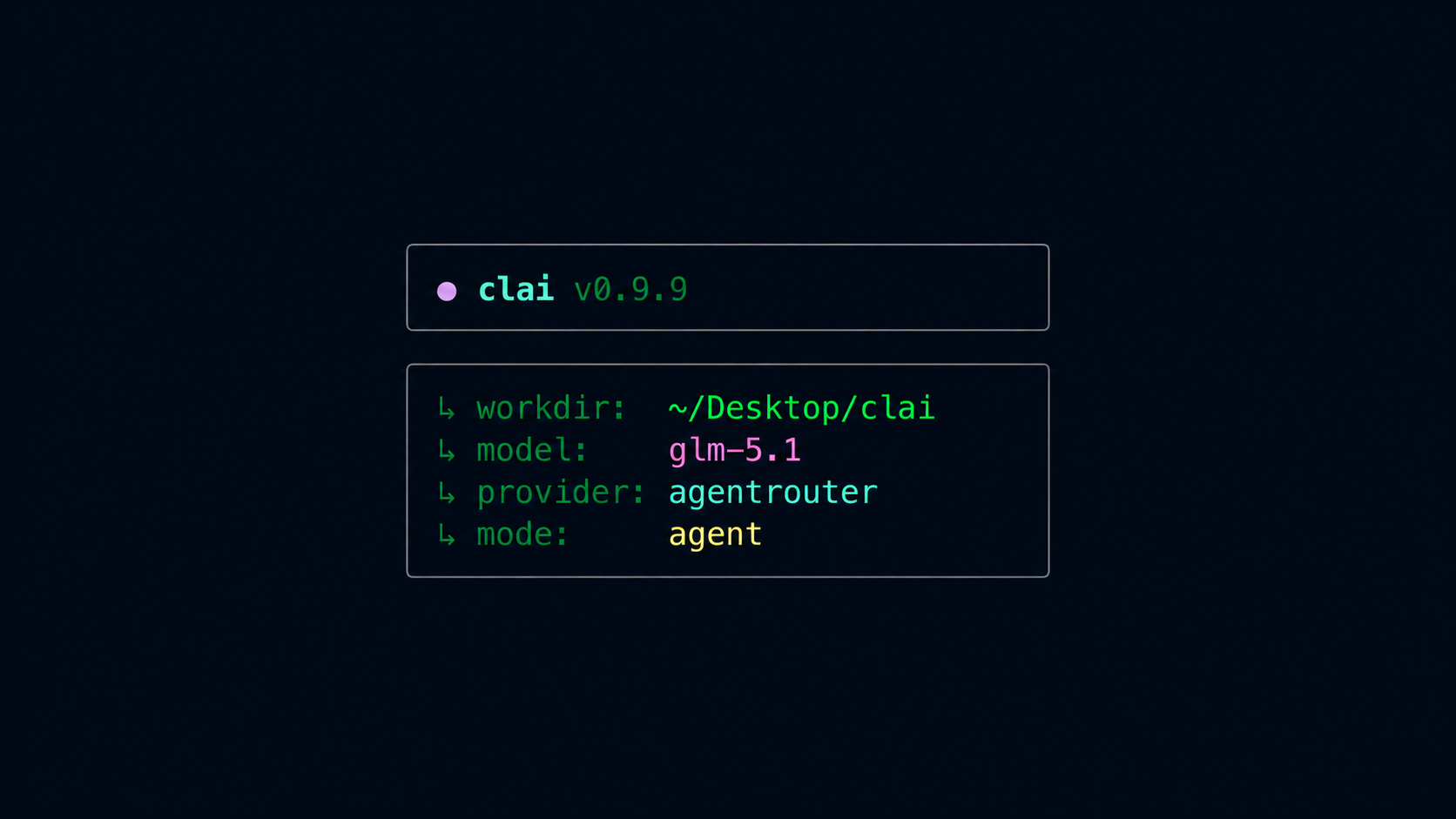
clai: A Free AI CLI for Your Terminal and Pentesting Work
One terminal. Two modes. Eight LLM providers. Zero lock-in.
If you spend most of your day in a terminal and you have ever wished your shell could just understand what you are trying to do, this post is for you. I built clai as a fast, cross-platform AI assistant that lives inside your terminal, runs commands when you ask it to, and actually behaves itself around dangerous operations. It works for everyday dev tasks, sysadmin chores, and authorized cybersecurity workflows like recon and scanning.
This is a deep dive into what it does, how to install it, and how I actually use it day to day.
Why I built clai
Most AI CLIs feel like one of two things:
- A chat window dressed up as a binary, so it can talk but not act.
- A full agent that will run commands, but happily nukes your repo because nothing stopped it.
I wanted something in the middle. Something that can plan a task, run shell commands, edit files, and install missing tools, without forgetting that rm -rf / is a bad idea. And I wanted it free to build on, free to run, and not tied to a single LLM provider.
That is clai.
What clai does in one paragraph
clai gives you a /ask mode that explains and walks you through commands without touching your machine, and an /agent mode that actually executes. It plugs into eight LLM providers (seven of them with free tiers), classifies every tool call into safe / confirm / block, and keeps a session history with secret redaction. It runs on macOS, Linux, and Windows, detects your native package manager, and ships pentest-aware tooling for nmap, gobuster, ffuf, sqlmap, and friends.
Install clai
Pick whichever fits your setup. After installation, just type clai in any terminal.
macOS
# Homebrew (recommended)
brew tap pentoshi007/clai
brew install clai

# or via curl
curl -fsSL https://raw.githubusercontent.com/pentoshi007/clai/main/install/install.sh | sh
Linux
curl -fsSL https://raw.githubusercontent.com/pentoshi007/clai/main/install/install.sh | sh
Windows
# PowerShell (recommended)
irm https://raw.githubusercontent.com/pentoshi007/clai/main/install/install.ps1 | iex

# or Scoop
scoop bucket add clai https://github.com/pentoshi007/clai
scoop install clai
Any OS via npm
npm i -g @pentoshi/clai
From source
git clone https://github.com/pentoshi007/clai.git
cd clai && npm install && npm run dev
A 30-second tour
# Open the interactive REPL
clai

# Ask mode: explains, never executes
clai --mode ask "create a python venv and install requests"

# Agent mode: actually does the work
clai --mode agent "find all PDFs larger than 10MB in ~/Documents"

# Auto-confirm tool execution for trusted, repeatable jobs
clai -y "list the 10 largest files in my home directory"
That is genuinely the whole getting-started loop. You drop into the REPL, type your goal, and watch it work.
The two modes that matter
/ask mode
Read-only. clai explains what to do, gives copy-paste commands, and walks you through it step by step. Nothing on your machine changes. Use it when you want to learn the path before walking it, or when you are working on a system where you do not want any auto-execution at all.
/agent mode
Agentic. clai plans, runs commands, edits files, installs missing tools when you allow it, parses the output, and keeps going until your goal is met. This is the mode that turns "find every config file referencing the old API host and update it to the new one" from a 20-minute task into a one-liner.
You can switch between them mid-session with /ask and /agent.
Eight LLM providers, your choice
clai is provider-agnostic. It currently supports:
| Provider | Default Model | Free? | API Key Prefix |
|---|---|---|---|
| Groq | llama-3.3-70b-versatile | yes | gsk_ |
| Gemini | gemini-2.0-flash | yes | AIza |
| OpenRouter | meta-llama/llama-3.3-70b-instruct:free | yes | sk-or- |
| OpenAI | gpt-4o-mini | no | sk- |
| Anthropic | claude-3-5-haiku-latest | no | sk-ant- |
| NVIDIA NIM | openai/gpt-oss-20b | yes | nvapi- |
| AgentRouter | gpt-5 | no | sk- |
| Ollama | llama3.1:8b | yes | local URL |
If you want to stay completely local and offline, point clai at a running Ollama instance and you are done.
Setting a key looks like this:
clai set groq gsk_xxxxxxxxxxxxxxxx
clai set gemini --from-env GEMINI_API_KEY
echo "gsk_xxx" | clai set groq --stdin     # safer, avoids shell history
clai set ollama --url http://localhost:11434

clai keys                # list (masked)
clai use groq            # switch active provider
clai provider            # interactive picker
clai unset groq          # remove a key
Runtime environment variables override stored keys, which makes CI and ephemeral sessions painless.
The built-in tools
In agent mode, the LLM does not run raw shell on its own. It calls a small registry of tools, and each tool has a known risk profile.
| Tool | What it does | Risk |
|---|---|---|
shell.exec | Run shell commands via execa, 120s timeout, streamed output | smart |
fs.read | Read files inside approved roots | safe |
fs.write | Write files inside approved roots | confirm |
fs.list | List directory contents | safe |
fs.search | Search files with ripgrep, falls back to grep | safe |
pkg.install | Install packages via the detected OS package manager | confirm |
net.scan | Nmap wrapper for port scanning | confirm |
http.fetch | HTTP GET/POST with response size limits | safe |
sysinfo | OS, architecture, shell, working directory | safe |
pentest.recon | Composite: whois + dig + nmap top-100 ports | confirm |
"Smart" means clai inspects the actual command. Read-only stuff like curl, ls, whoami, gobuster, dirb, ffuf, and nikto runs without bothering you. Mutating commands prompt for confirmation. Anything that looks like rm -rf /, a fork bomb, or unauthorized public scanning is blocked outright with an explanation.
The safety gate I actually trust
Every tool call goes through a three-tier classifier before anything happens.
- safe runs automatically. Read-only filesystem ops, sysinfo, http.fetch, and read-only shell commands fall here.
- confirm prompts you. Mutating shell commands,
fs.write,pkg.install, andnet.scanrequire an explicit yes. - block refuses with a reason. Destructive globs, exfiltration patterns, and public IP scans without authorization never even reach your shell.
There is also a one-time pentest authorization step. Security tooling stays gated until you opt in:
clai authorize-pentest AGREE
You can keep clai on a leash for engagements by storing scope:
clai scope add --targets example.com,10.0.0.0/24
If the agent ever proposes a public recon target outside your scope, clai shows a scope suggestion and still routes the request through the normal confirmation flow. Nothing slips by silently.
REPL commands worth remembering
The interactive REPL has a small set of slash commands that turn it from a chat window into a real workspace.
| Command | What it does |
|---|---|
/ask, /agent | Switch modes |
/model, /model <name|#> | Pick a model interactively or by index |
/provider [name], /use <provider> | Switch provider or open the picker |
/set <provider> [key] | Store an API key, masked input if key is omitted |
/unset, /keys | Remove or list keys |
/variants [on|off|low|medium|high] | Toggle thinking/reasoning variants |
/think | Show hidden thinking from the last response |
/output [last|id|list] | Toggle full saved tool output |
/clear, /new | Clear context, or save and start fresh |
/history, /save <name>, /reset | Browse, save, or wipe sessions |
/cwd <path> | Change working directory |
/allow <tool> | Whitelist a tool for the session |
/scope add <targets> | Add authorized pentest targets |
/fallback [on|off] | Try other configured providers after a failure |
/update | Check for updates |
/exit, /help | Quit, or list commands |
Ctrl+C | Abort current response, second press exits |
Ctrl+O | Toggle full tool output, same on every OS |
That Ctrl+O shortcut is the unsung hero. When a tool dumps a wall of output, the chat shows a tidy summary while the full transcript is saved to disk for the pager. You stay focused without losing the raw data.
Real use cases
Everyday developer flow
- "Find every TODO in this repo grouped by file and print a summary."
- "Spin up a Python venv, install fastapi and uvicorn, and start the dev server on port 8001."
- "Look at this stack trace, find the file, and patch the off-by-one bug."
- "What is the smallest change to make our package.json strict-mode safe?"
- "Read the migrations folder and tell me which one introduced the users.email index."
Sysadmin and ops
- "Show me which processes are eating the most memory and explain what each one is."
- "Tail the nginx error log for the last 200 lines and group by status code."
- "Open the firewall on port 5432 only for the local subnet, and explain what you are about to change before doing it."
- "Find all SSH config files on this machine and tell me which ones still allow password auth."
Authorized pentesting and recon
After clai authorize-pentest AGREE and adding scope, you get a tightly-scoped operator that runs nmap, ffuf, gobuster, sqlmap, hydra, masscan, whois, dig, netcat, and tshark on demand. Examples:
- "Run a top-1000 port scan on
scope.example.comand only follow up on services with banners that look interesting." - "Brute force common directories on
https://target.testwith ffuf and a small wordlist, then summarize the 200s and 403s." - "Whois plus dig plus a top-100 nmap on this engagement target." (this is
pentest.reconin one step)
The agent will not jump to deeper exploitation steps unless you ask. It stops when the goal is satisfied, which is honestly the part I am most proud of.
Cross-platform package management
clai detects brew, apt, dnf, pacman, winget, and choco, so a prompt like "install ripgrep and fd" works the same on Mac, on a fresh Ubuntu box, or on Windows.
Per-project context
Drop a .clai/context.md at the root of your repo and clai will inject it into every prompt automatically.
This is a Node.js project using Express and PostgreSQL.
The API server runs on port 3000.
Production deploys go through GitHub Actions to Fly.io.
This is great for keeping the agent on rails for big repos. It stops asking obvious questions and starts using the right conventions.
Diagnostics, updates, and config
When something feels off, run:
clai doctor
It prints your OS, shell, architecture, config paths, provider key status, and which pentest tools are installed with the exact command to install the missing ones. Half my support replies are just "run clai doctor and paste the output."
clai checks for updates on startup every four hours, non-blocking. You can also run:
clai update
# or inside the REPL
/update
Configuration lives at ~/.config/clai/config.json (path varies by OS). You can read or change it with:
clai config
clai mode agent
clai model llama-3.3-70b-versatile
What is coming next
I am rolling out a deterministic planner on top of the LLM loop. The short version:
- A task analyzer that classifies prompts as simple, standard, or complex before the model even starts.
- A right-side task pane that shows the live plan when your terminal is wide enough, and falls back inline otherwise.
- A
net.contexttool so "scan my network" stops guessing192.168.1.0/24and uses your actual default interface. - Background jobs for long-lived listeners and dev servers so the REPL never freezes on a
nc -lornpm run dev. - Granular file editing with
fs.edit, plus a permission-grant flow for paths outside your current directory and explicit confirmation for every deletion. - Stronger loop guards that detect "we already tried this scan, stop running it again" and force a replan.
The goal is to make weaker, cheaper models behave like good agents because the runtime gives them structure, not because the prompt begs them to.
Try it
If you want a free, fast, and honest AI CLI that respects your machine, give clai a spin.
brew tap pentoshi007/clai && brew install clai
# or
npm i -g @pentoshi/clai
Then just type clai and tell it what you want.
The repo lives at github.com/pentoshi007/clai. Issues, PRs, and feature requests are all welcome. If you build something cool with it, I would love to hear about it.